

HANDELSFAKTOR APP FOR STORE TEAMS
Inventory management on the shop floor.
Create items, record outgoing stock, take orders and check stock levels. Your store team works right where the goods are, using a phone or tablet.
App features
Items and stock
- Create and look up items
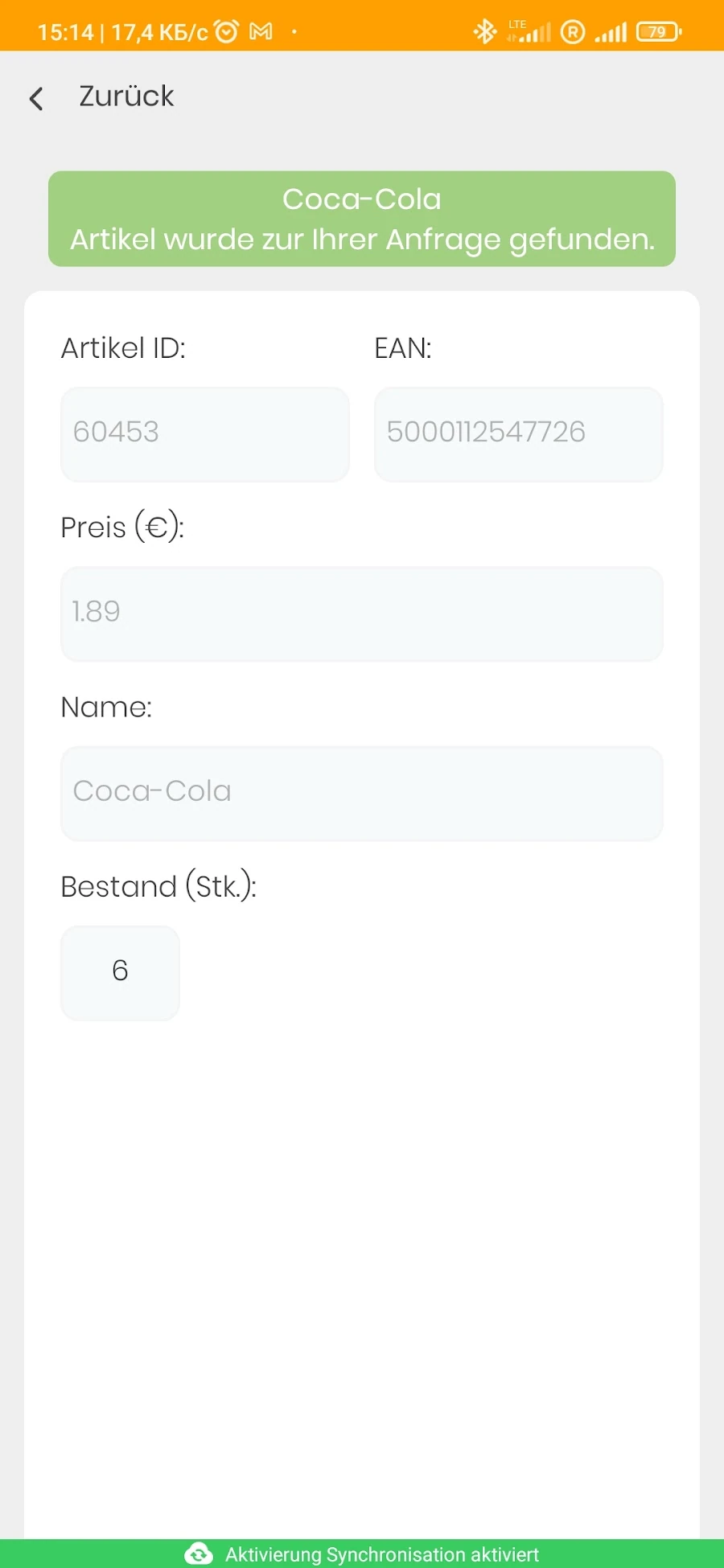
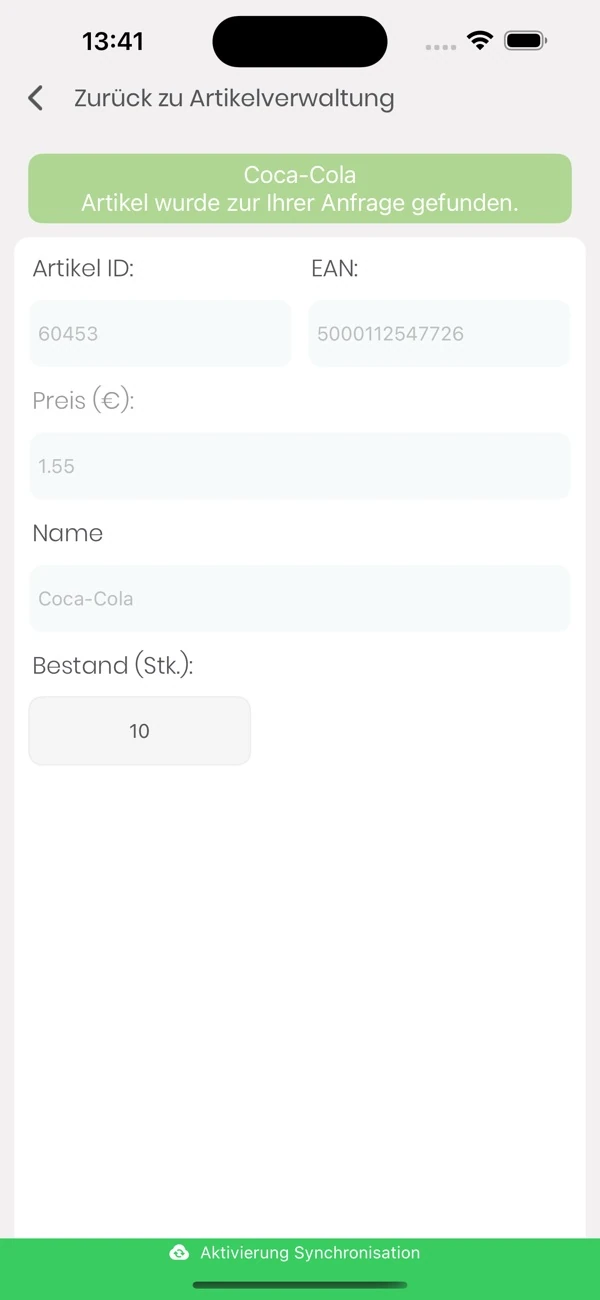
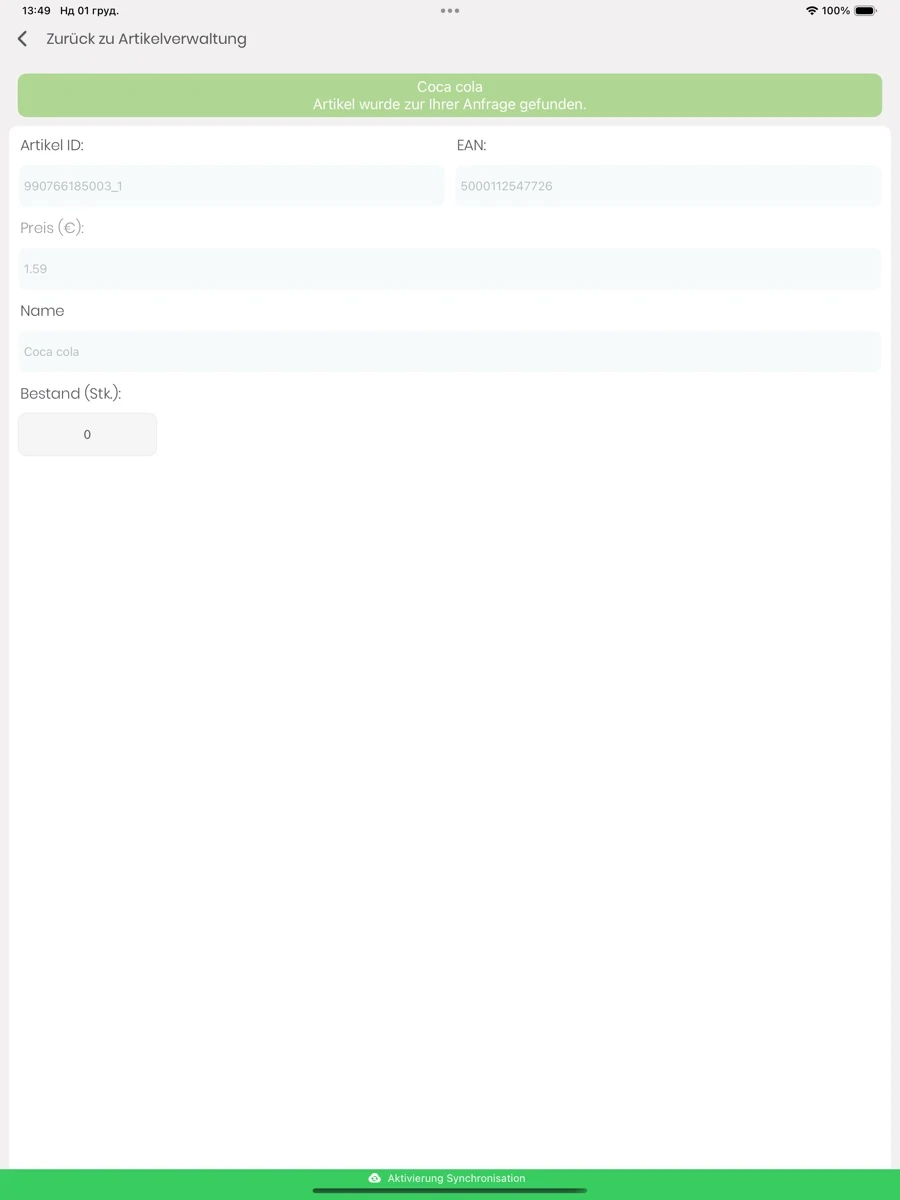
- Create new items in the app. Use the item number or EAN to look up an existing item’s description, price and stock level.
- Scan barcodes
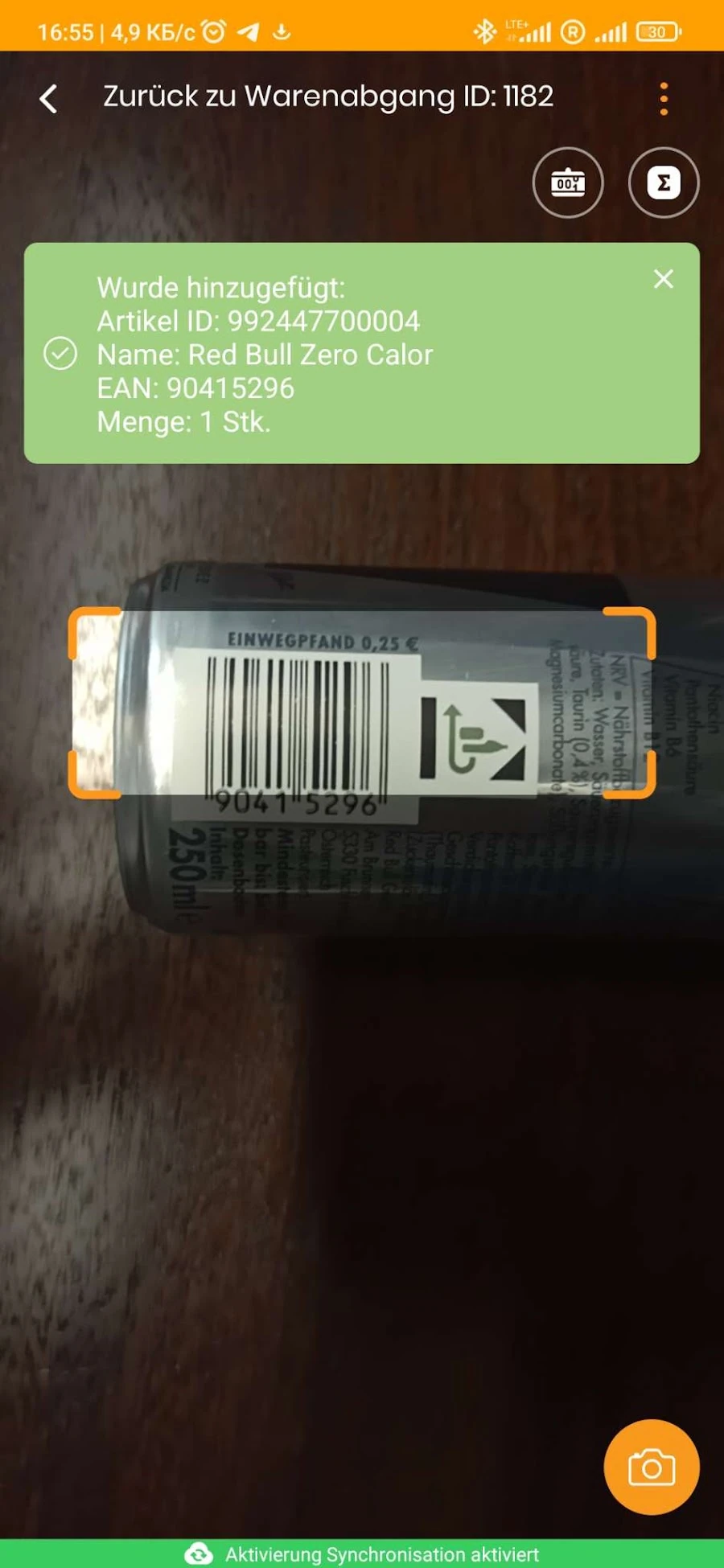
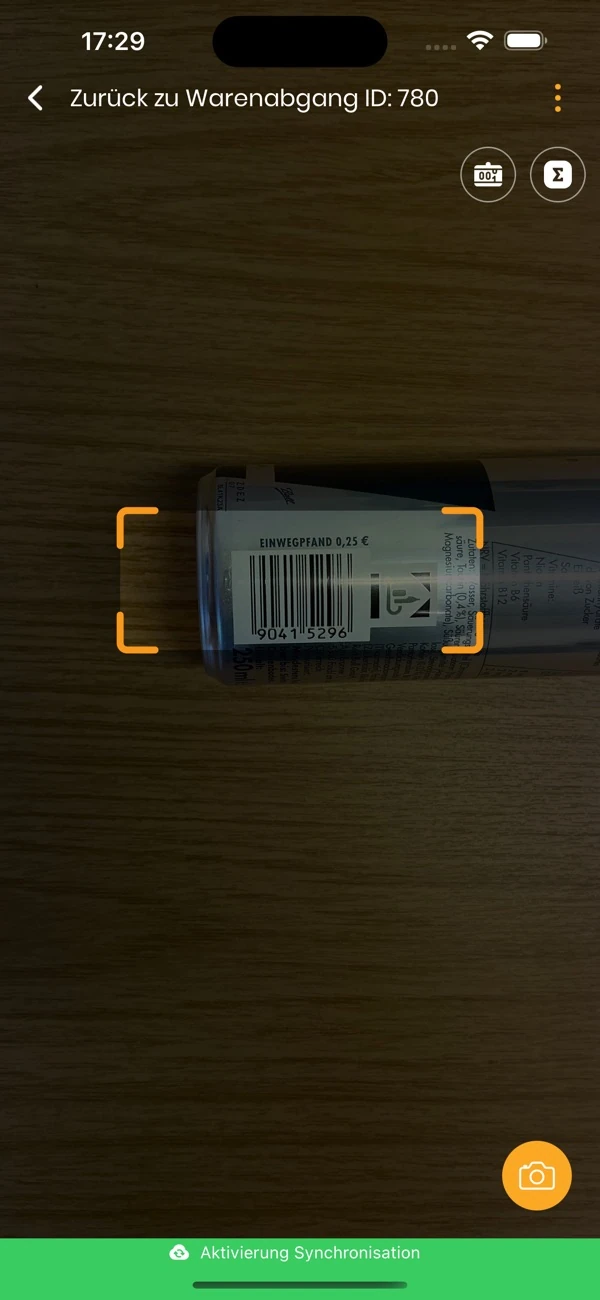
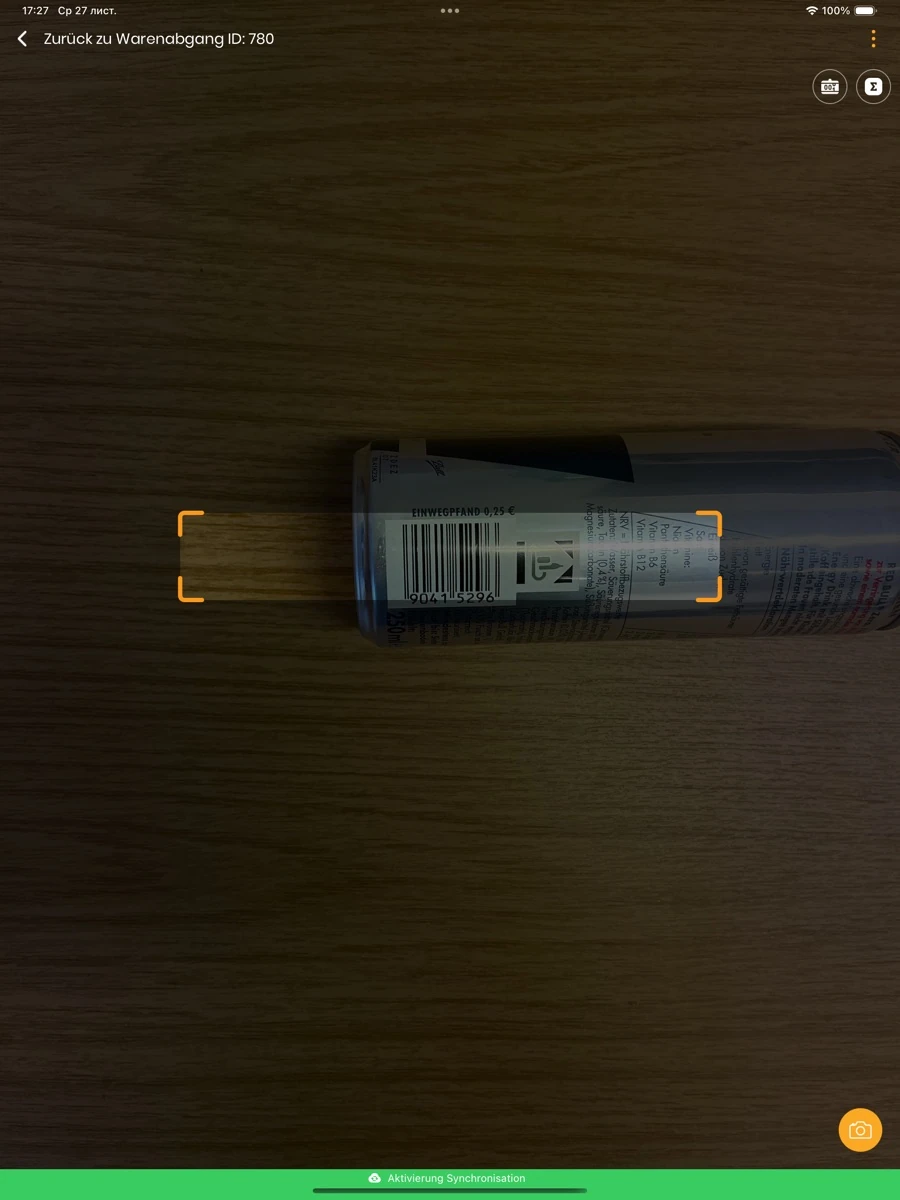
- Read the code on the item with the camera or a connected barcode scanner.
- Check stock levels
- Use the stock check to see the quantity recorded for an item. Switch to stocktaking when you need to count it.
- Check best-before dates
- Use the best-before section to manage and check the dates on your stock.
- View top items
- The app includes a dedicated overview of top items.
Orders and stock movements
- Record orders
- Record an order at the shelf, entering the items and quantities you need.
- Check and book incoming goods
- Check the delivery against the existing goods receipt and book the quantities received.
- Record outgoing stock
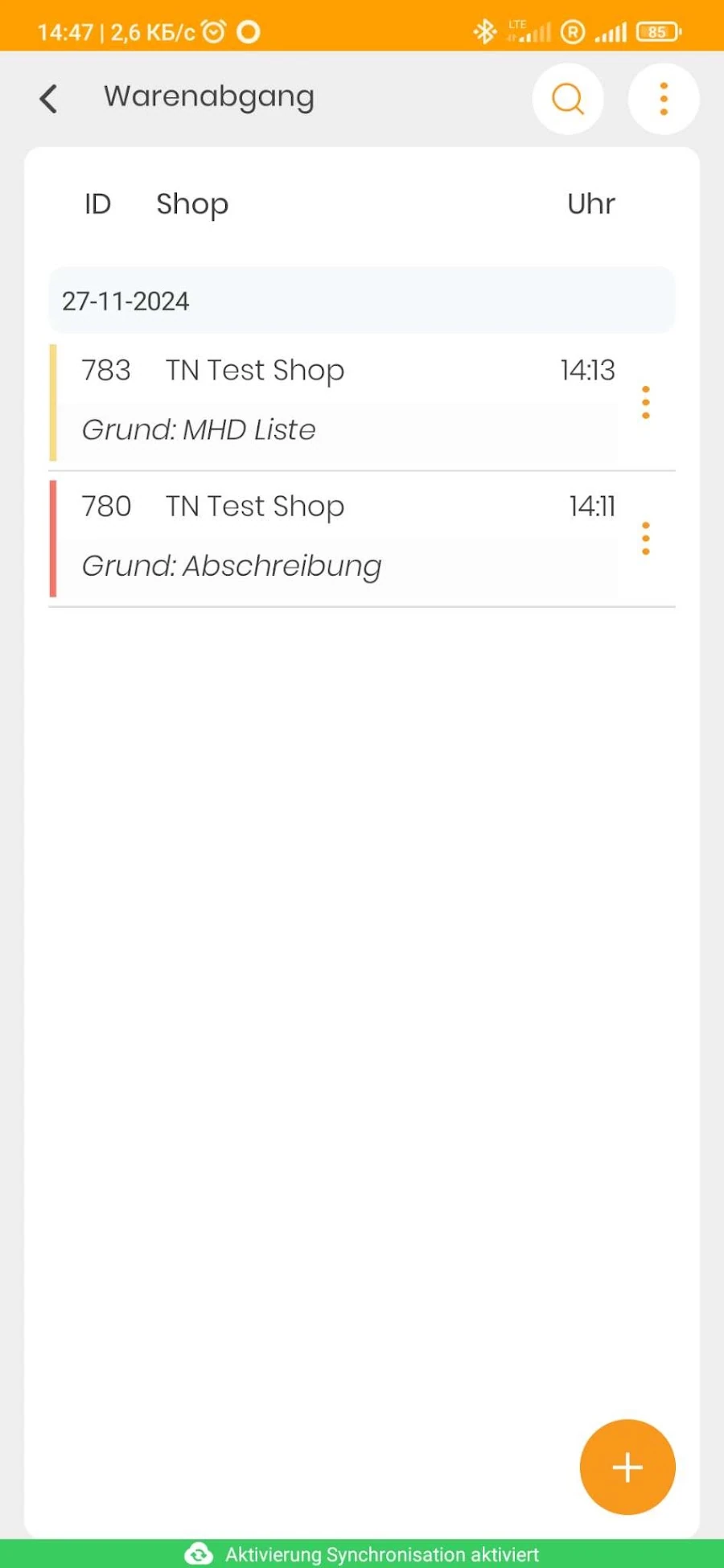
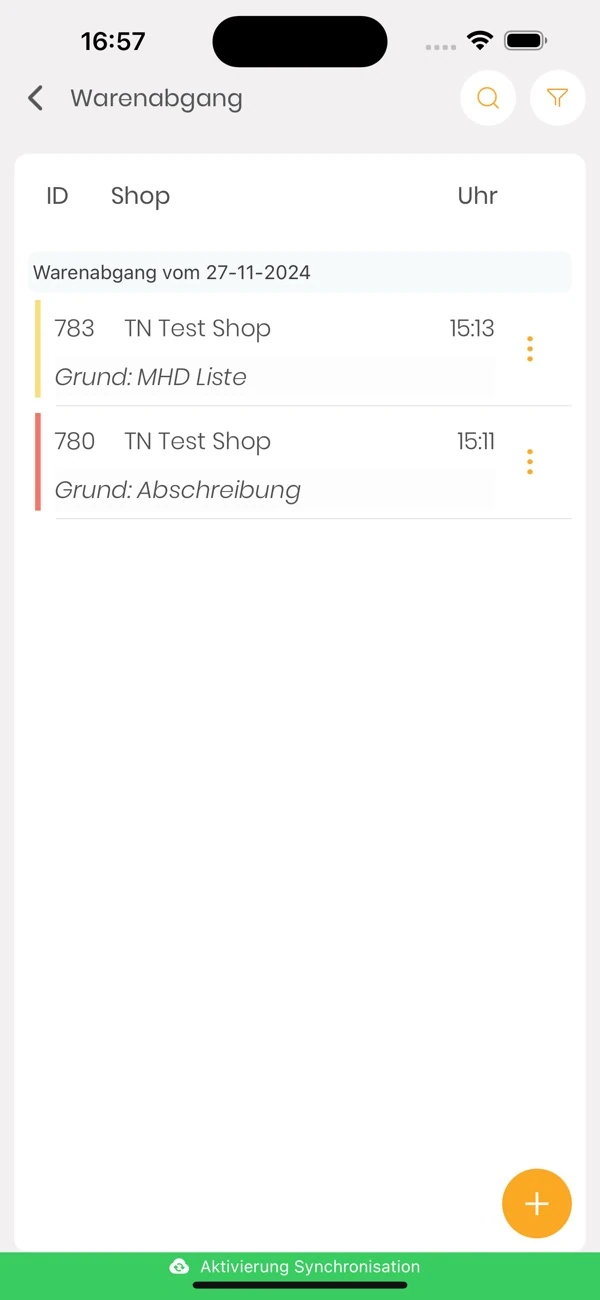
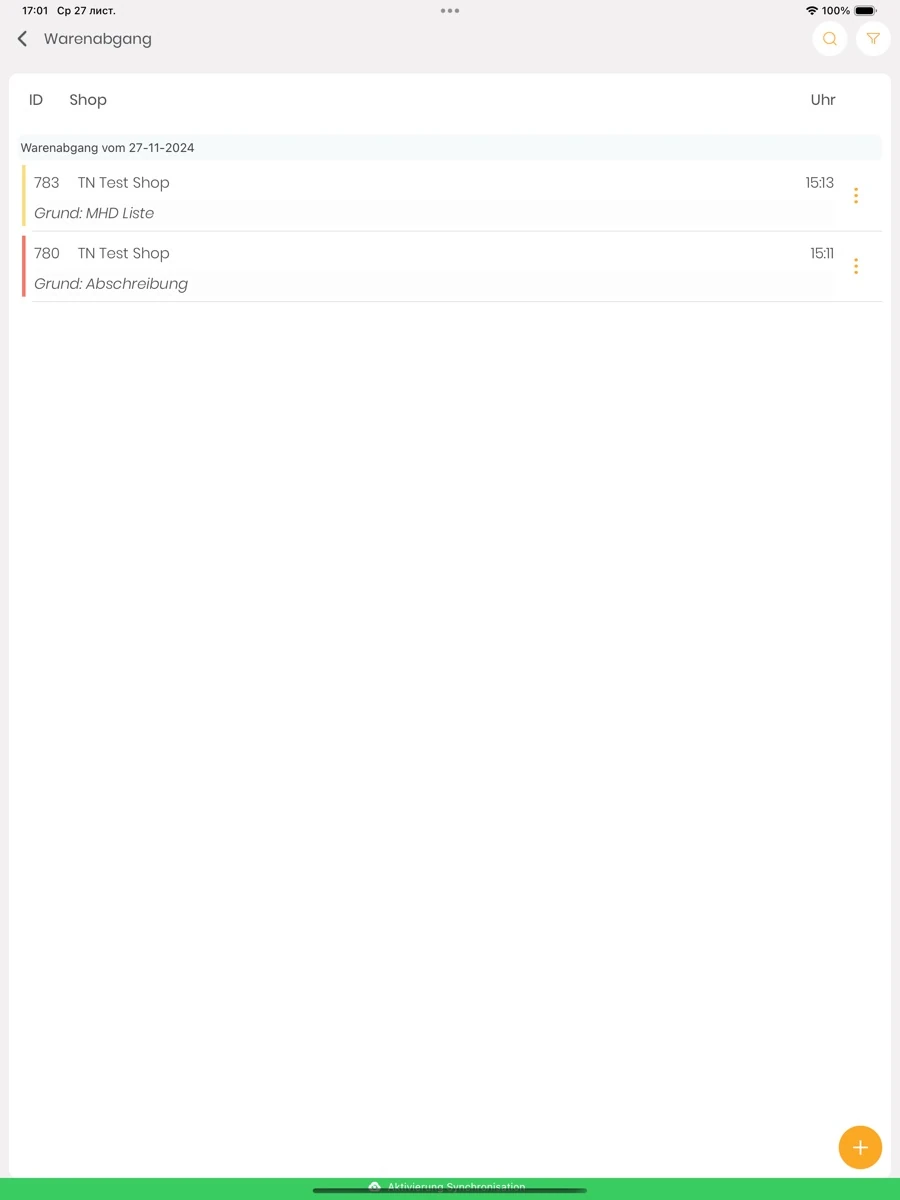
- Record the items and quantities leaving stock. The overview lists goods issues with the store and reason.
- Transfer stock between stores
- Use SHOP2SHOP to record stock transfers from one store to another.
Stocktaking and synchronisation
- Run partial and full stocktakes
- Count a single stockroom section or the entire stock. Record items and counted quantities on the device.
- Work offline and sync
- Keep recording when the connection drops. Once it returns, the app syncs the data with the inventory system.
Access and store menu
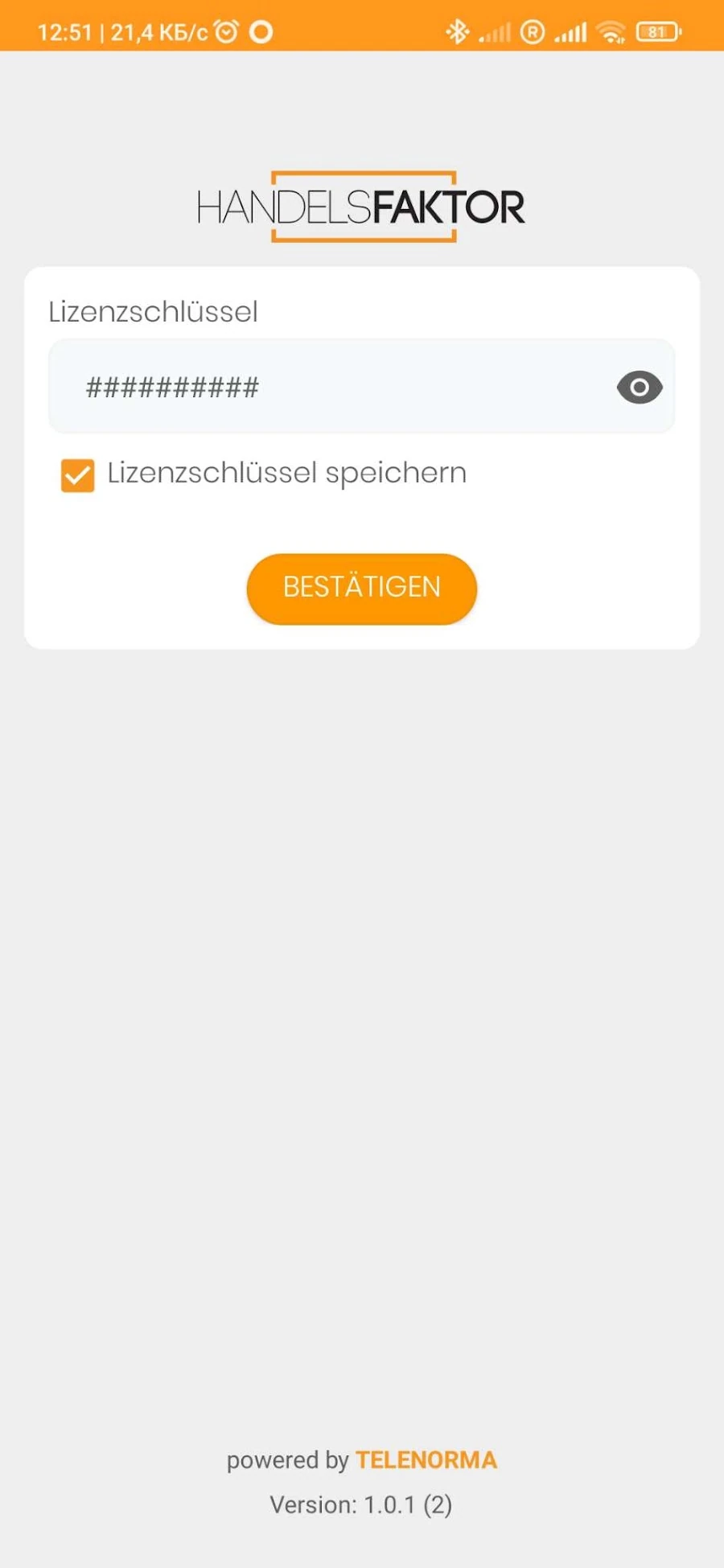
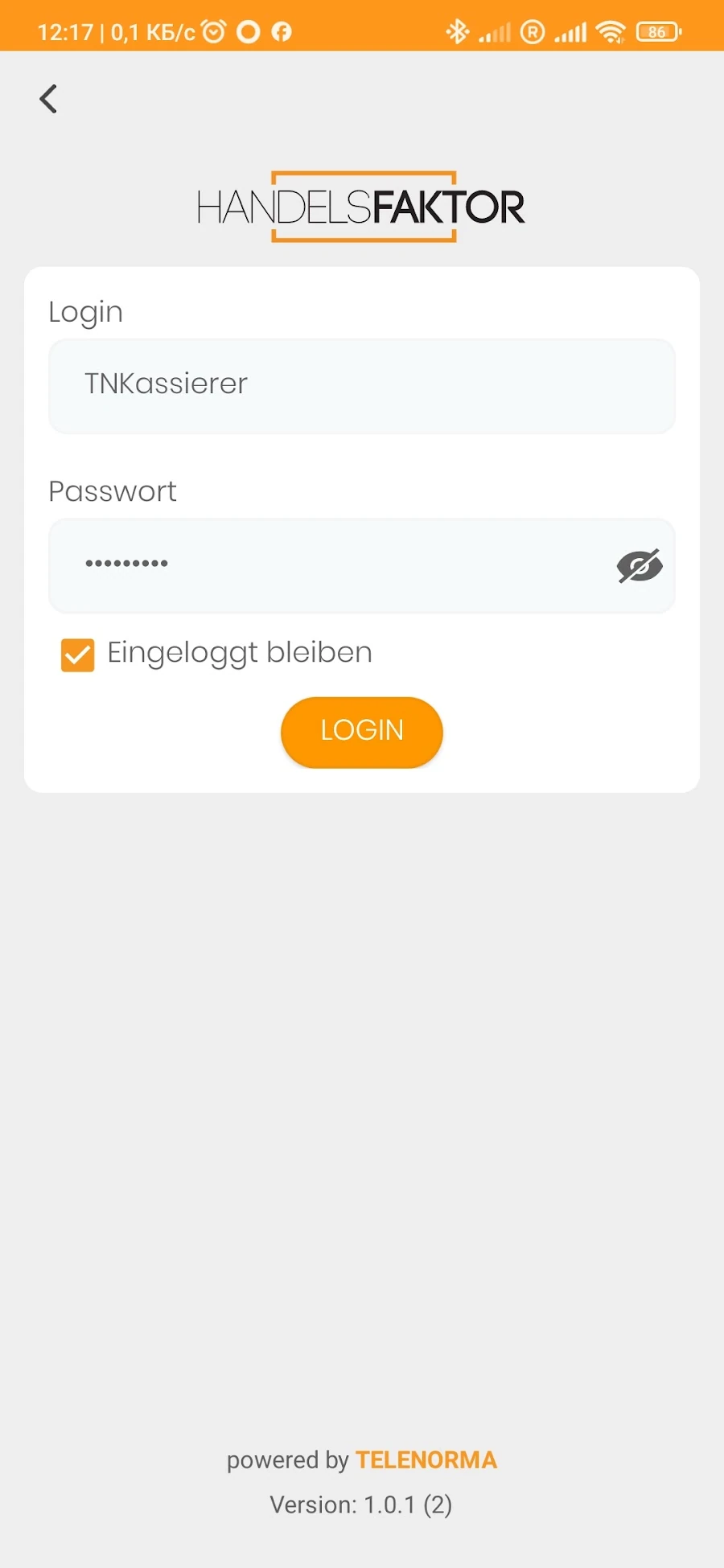
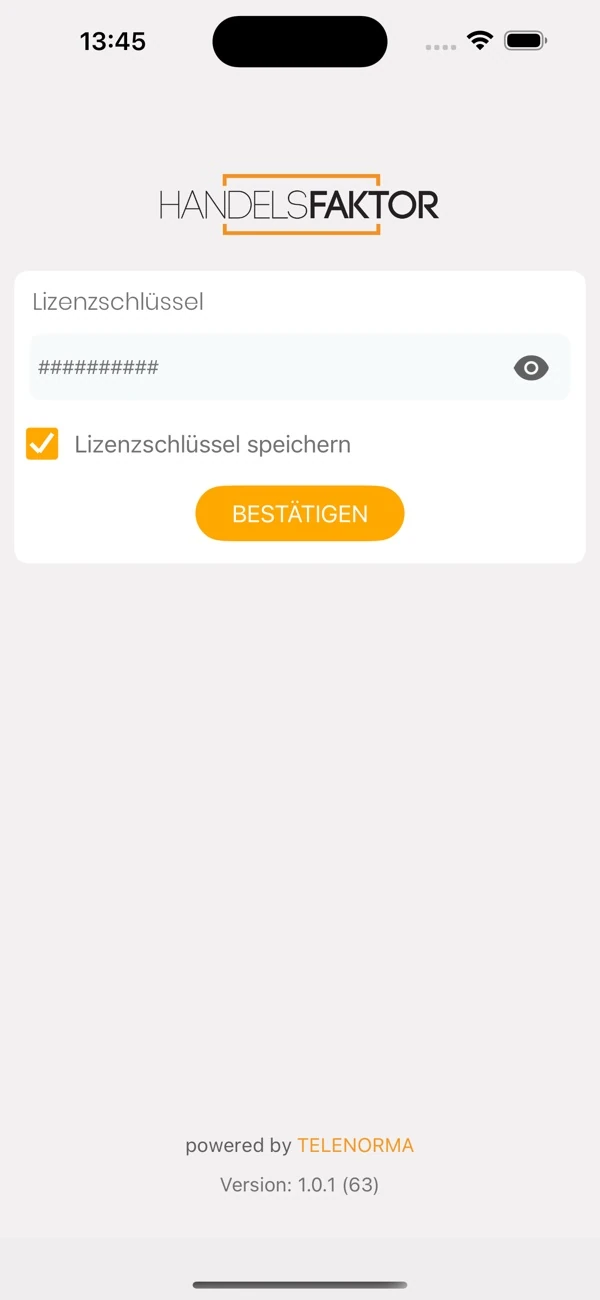
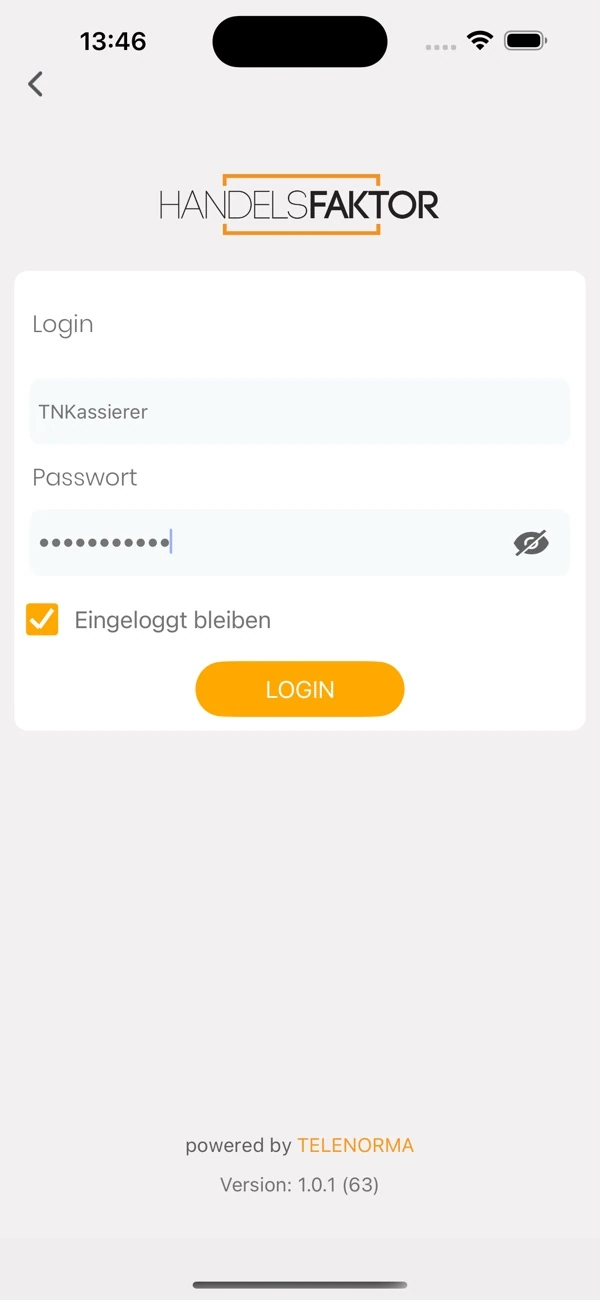
- Activate a licence and sign in
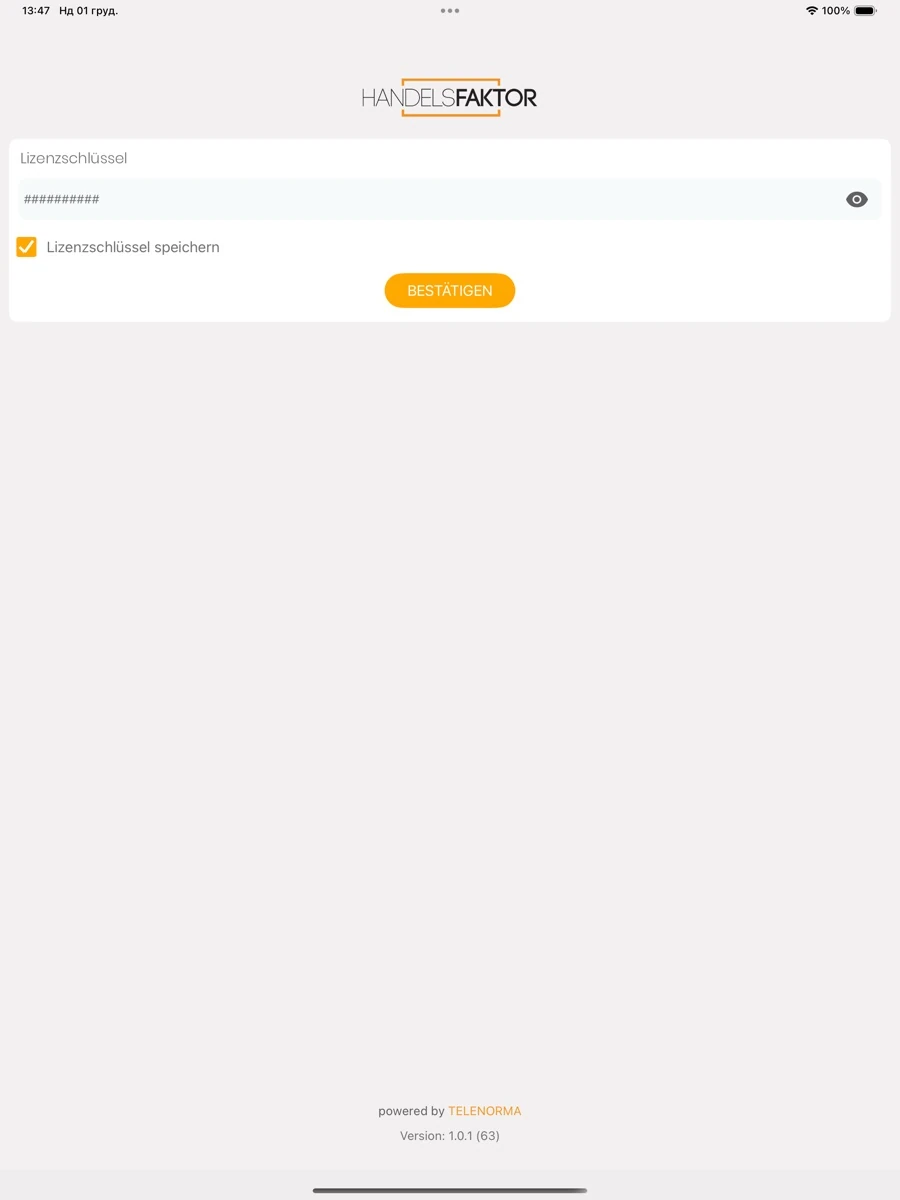
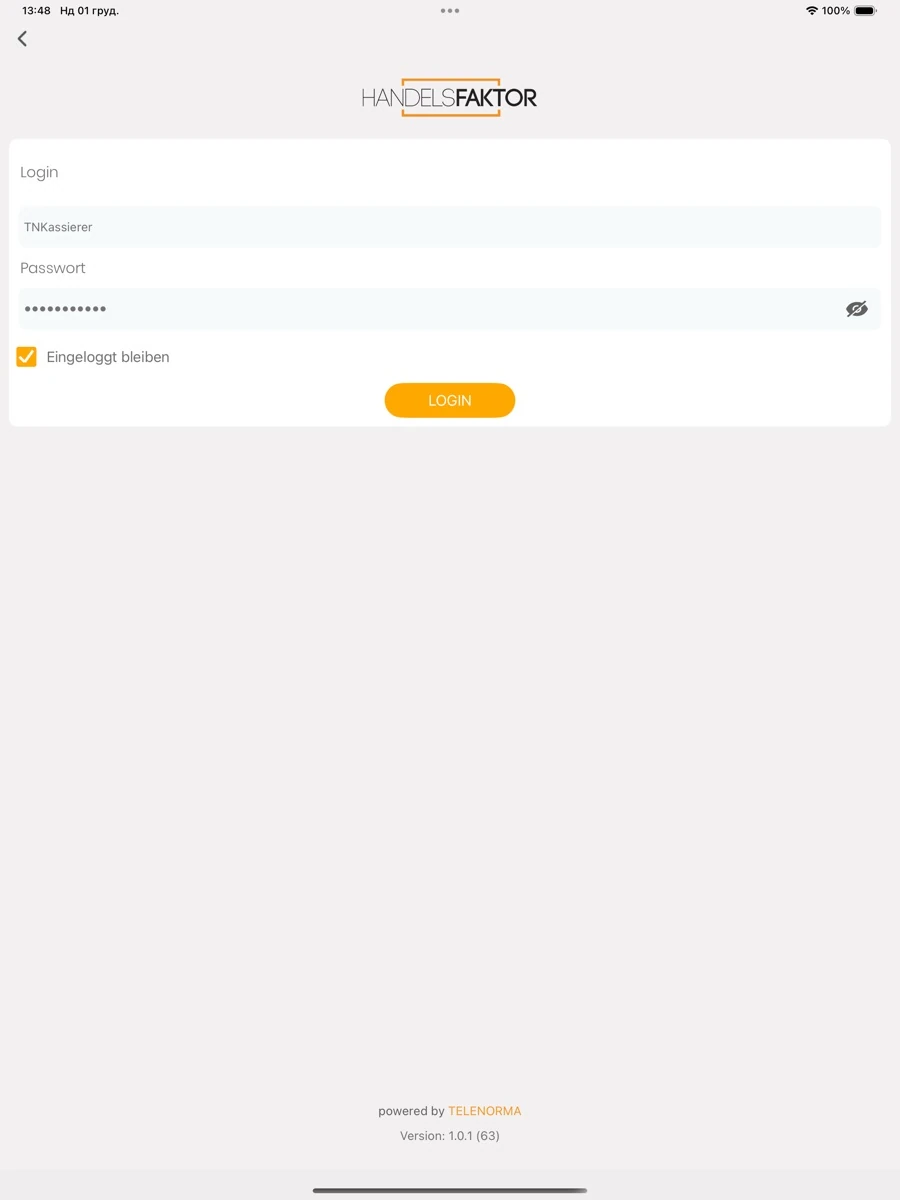
- Register the licence key and sign in with your user account. You can save the key and stay signed in on the device.
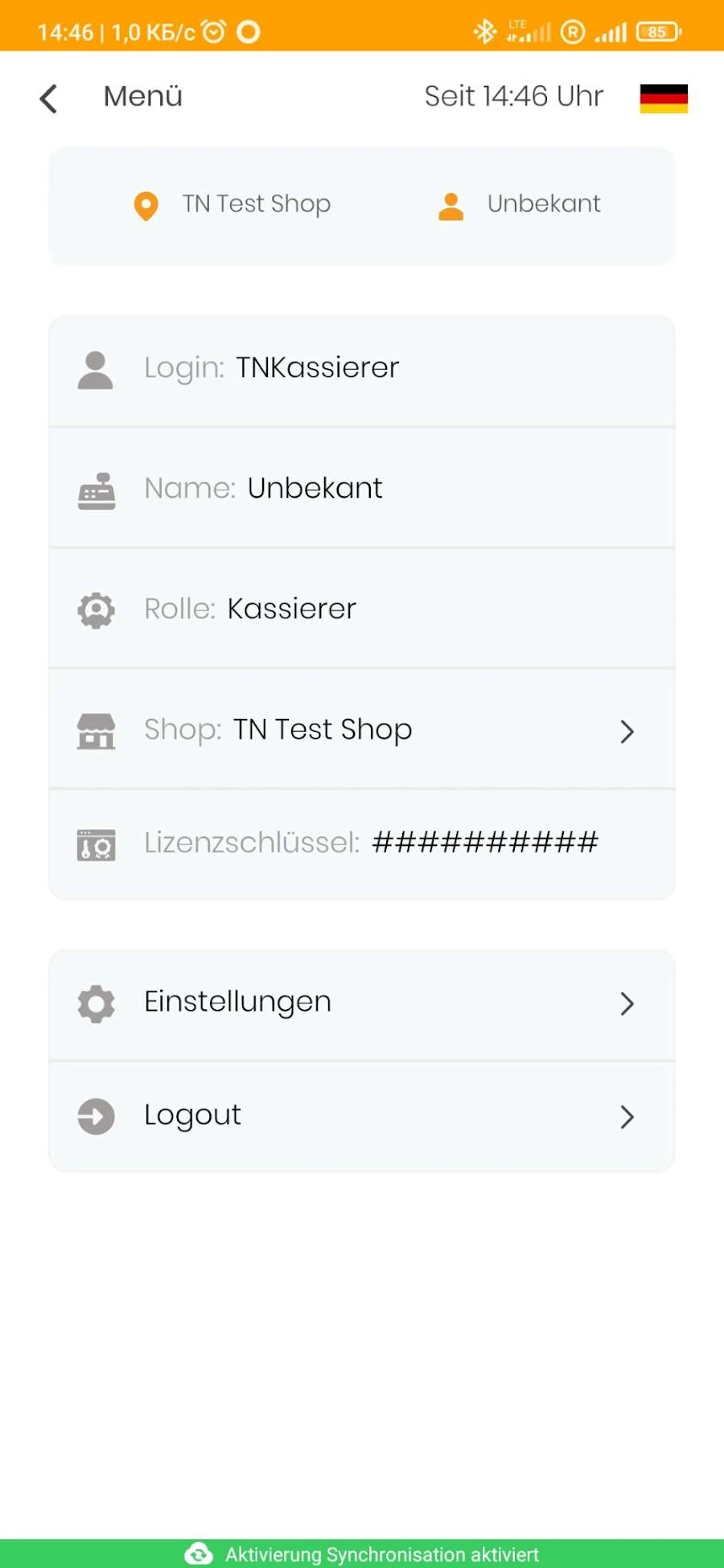
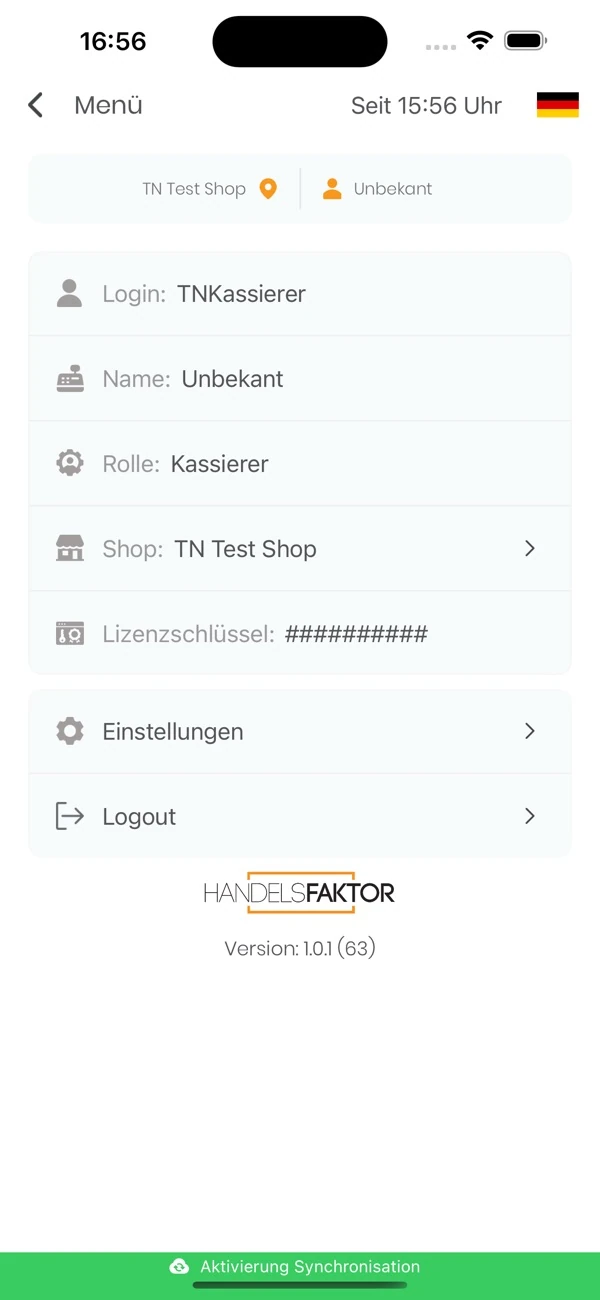
- Users, permissions and store
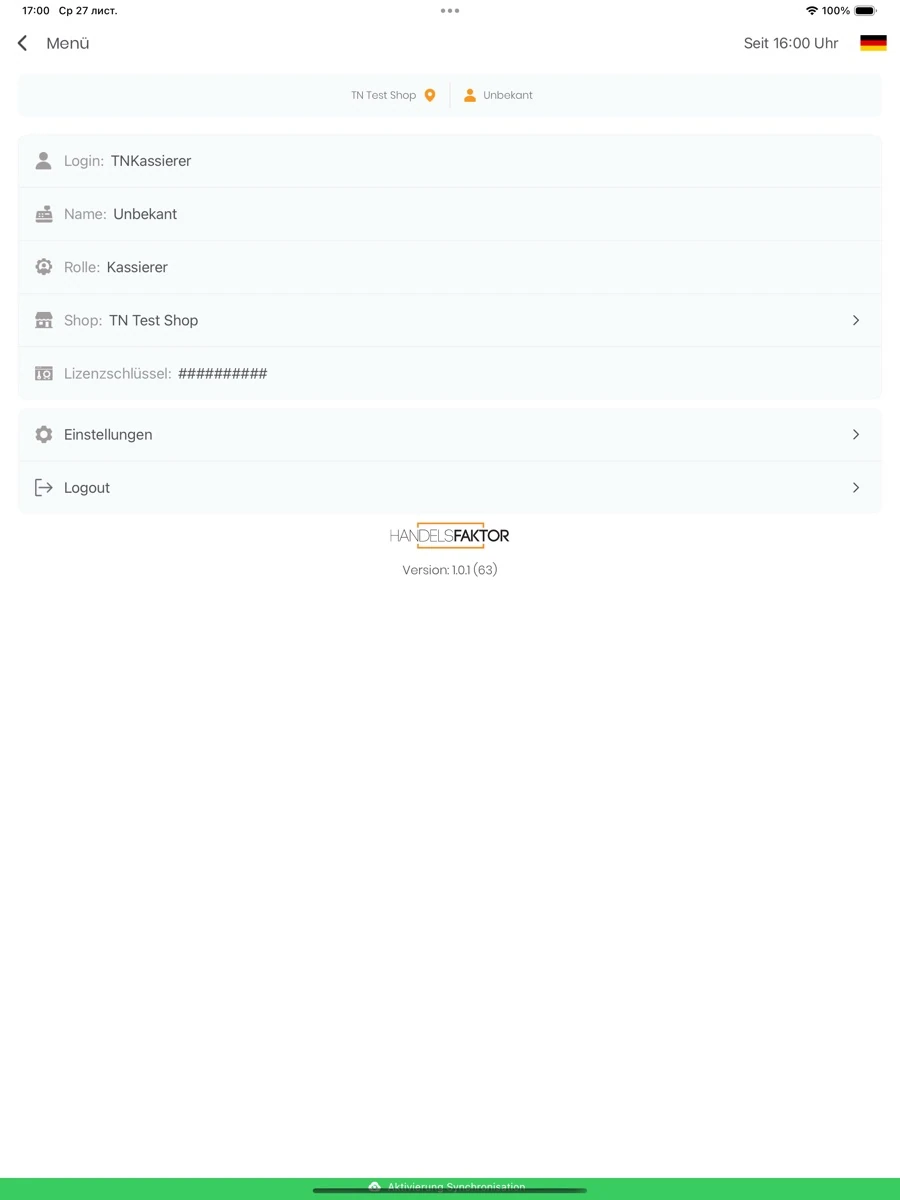
- Your role and store assignment determine access through HANDELSFAKTOR. The user menu shows the active store and provides access to settings and sign-out.
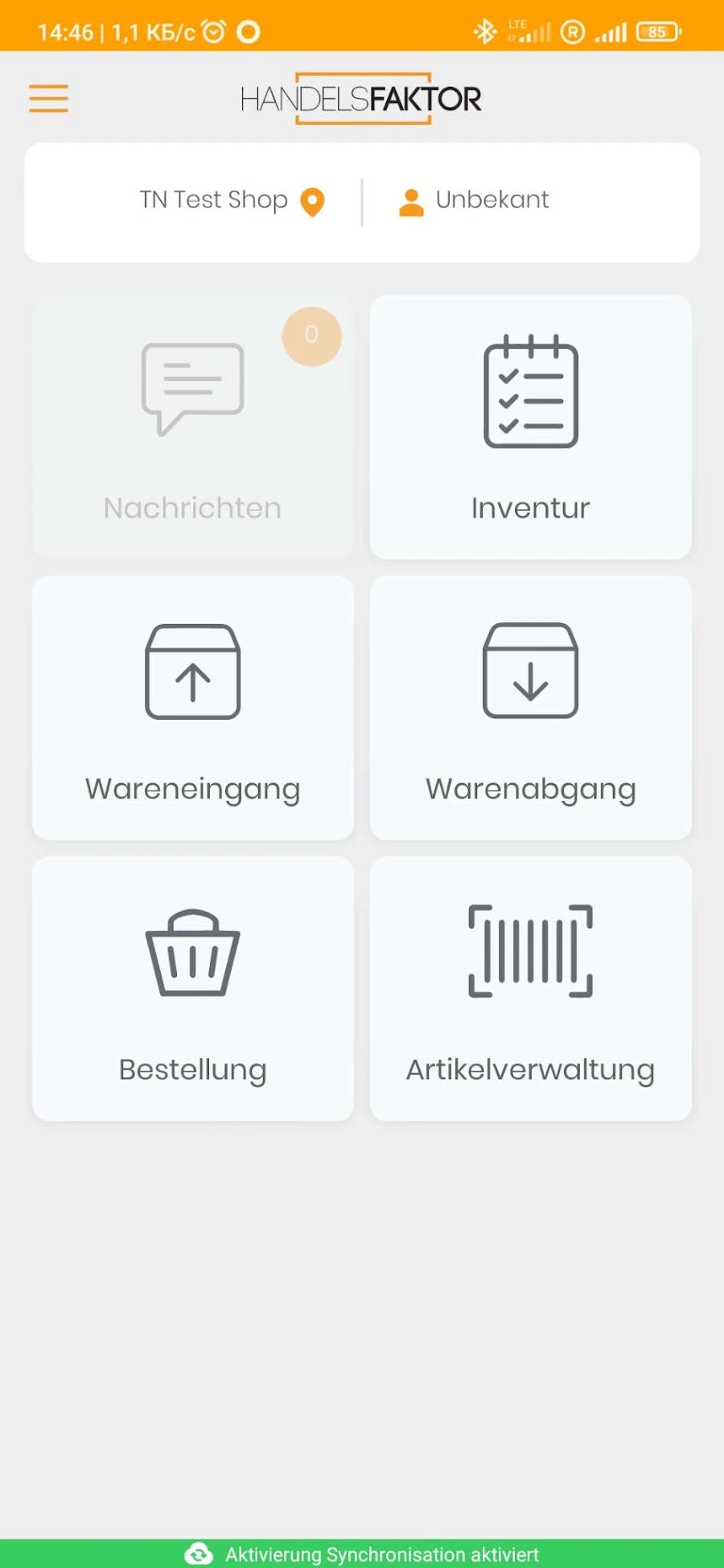
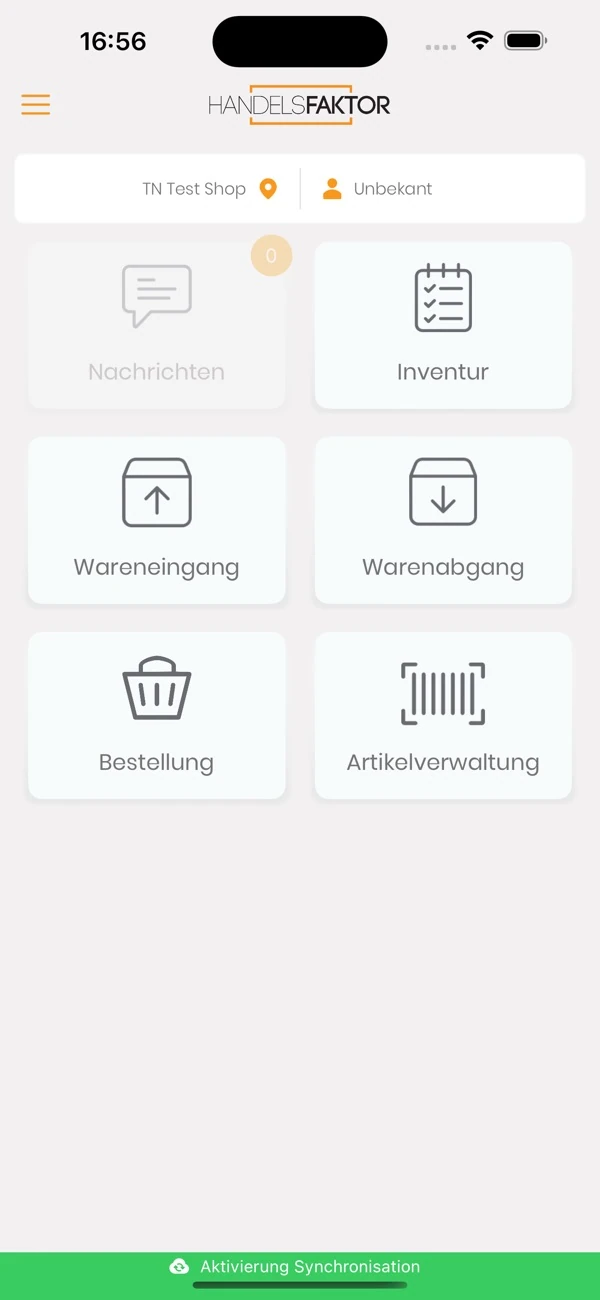
- View messages
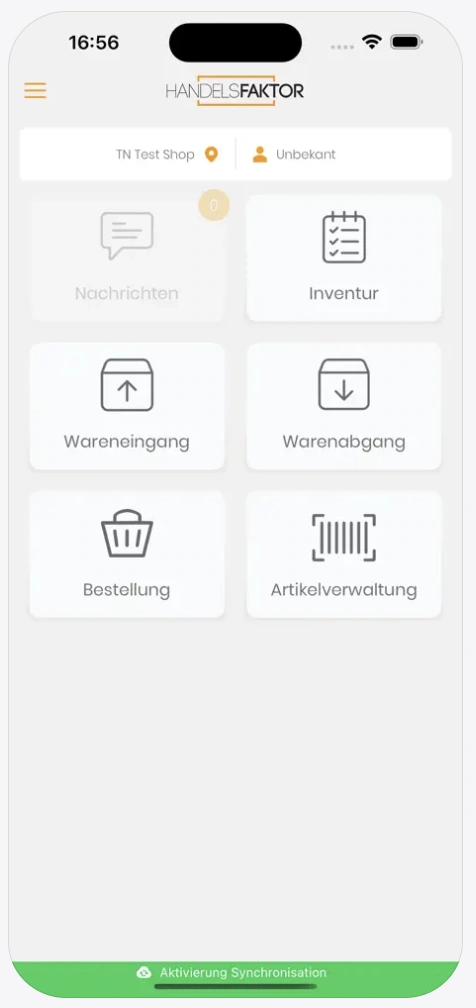
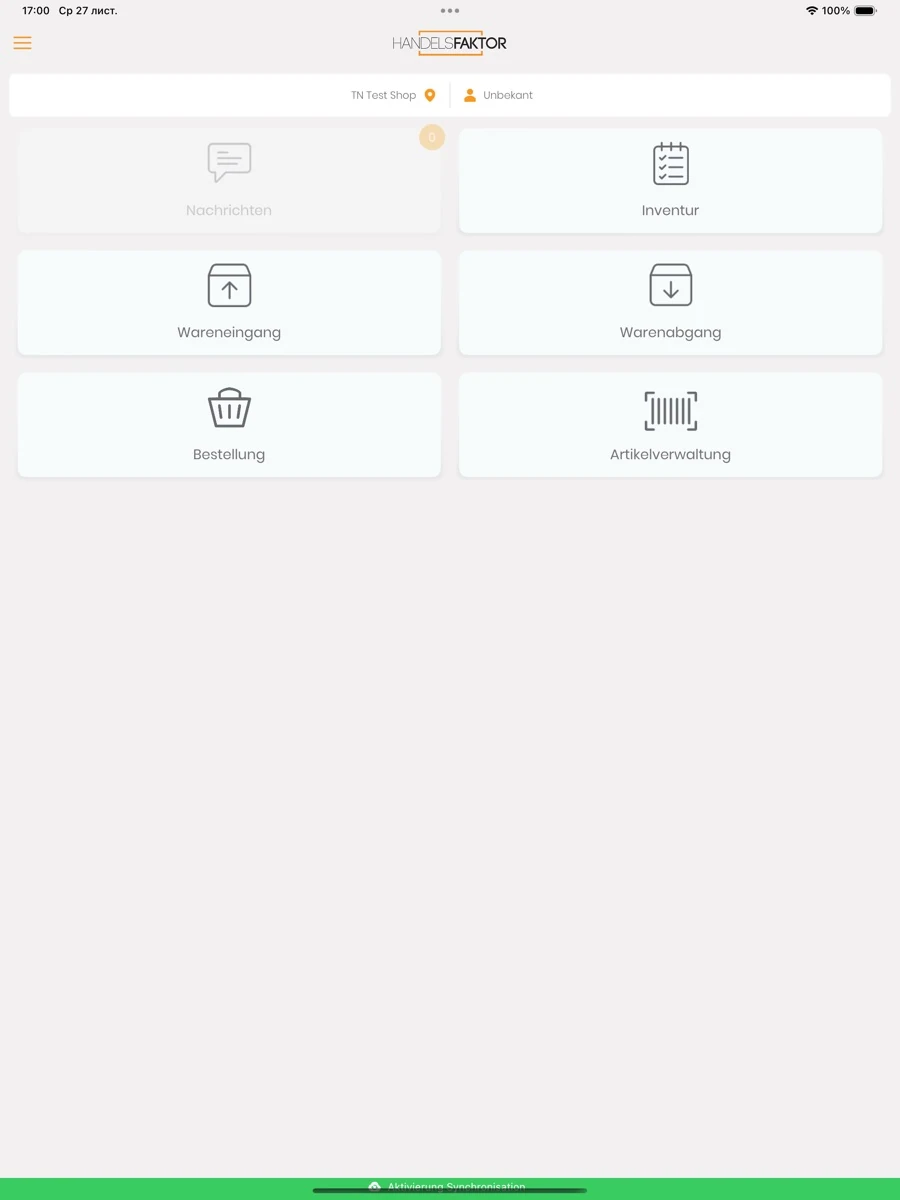
- The home screen includes a messages tile with a counter. It is greyed out in the example shown.
Original screenshots from the app stores
Choose your device. Select a screenshot to enlarge it.
iPhone
iPad
Android